

Using Plan Ahead in Texas State Self-Service
1) Log in to Texas State Self-Service
To add a class, first log in to Texas State Self-Service.
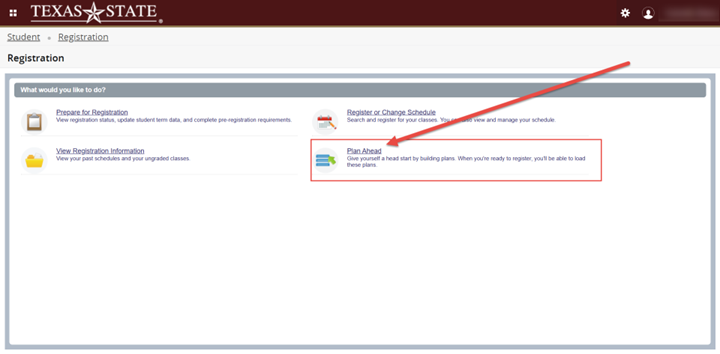
2) Registration Menu
Click on ‘Plan Ahead’
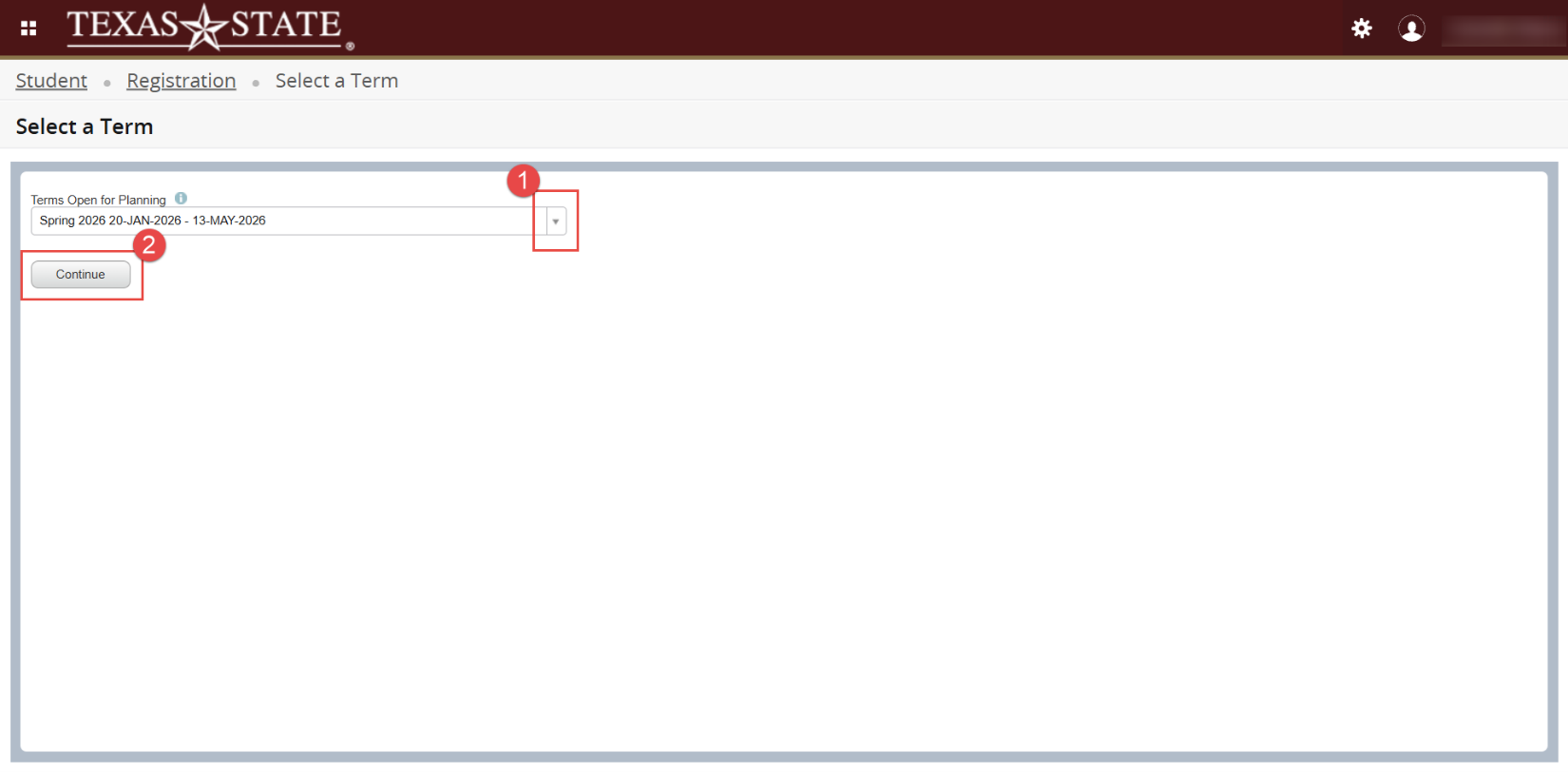
3) Select Term
Select a term from the drop-down menu and click ‘Continue’
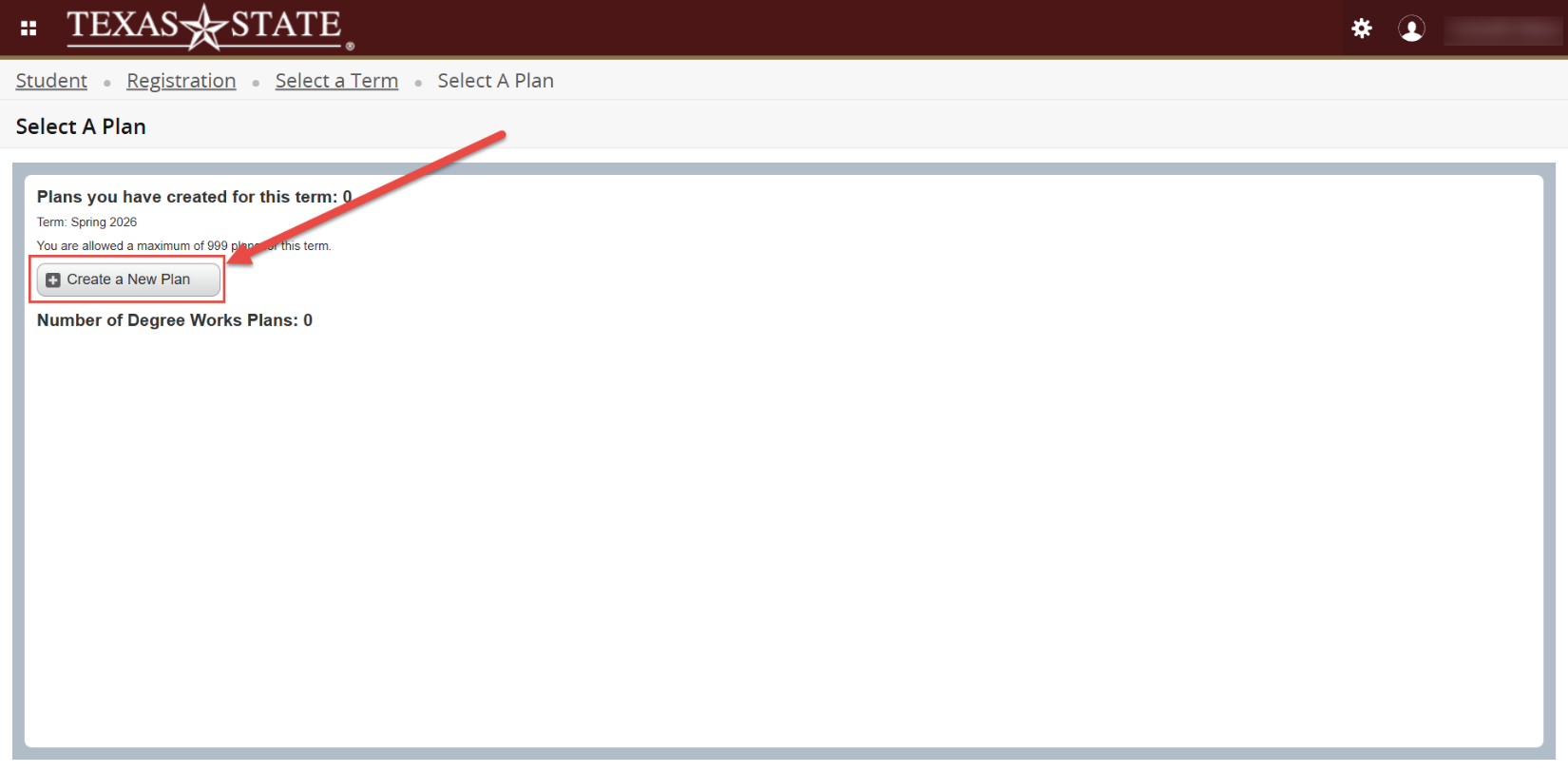
4) Create a Plan
To create a plan for yourself click ‘Create a New Plan’
Plans created by you, your advisor in Texas State Self-Service, and any Degree Works plans for the term will be available
5) Search Criteria
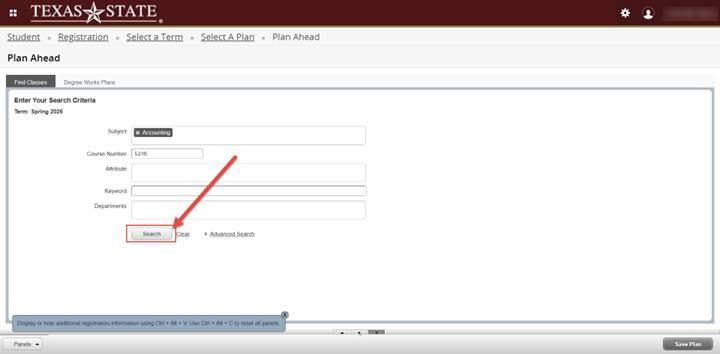
Search for courses using the search criteria and click ‘Search’
6) Choose ‘View Sections’ vs ‘Add Course’
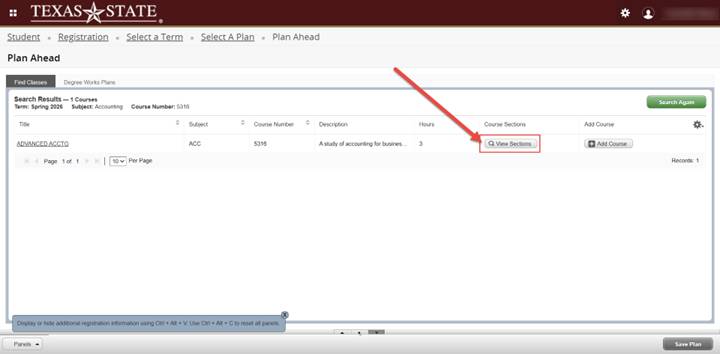
To build a specific plan (with meeting days/times and instructor details), click ‘View Sections’ to see the available section options. This is the best option when planning ahead or registering.
If you click ‘Add Course’, the course will be added to your plan, but you’ll still need to click ‘View Sections’ later to choose a specific section when it’s time to register.
7) Review section details and required approvals
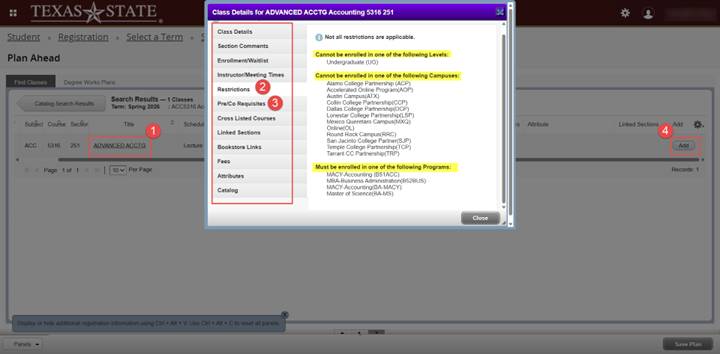
Once you select a section from the list, remember: Plan Ahead does not check whether you’re eligible to register until you actually register.
Click the course title to review any prerequisites, restrictions, or required approvals. If approvals are required, you’ll need to obtain them before registration in order to successfully enroll.
Click ‘Add’ to add the section to your plan.
8) Saving
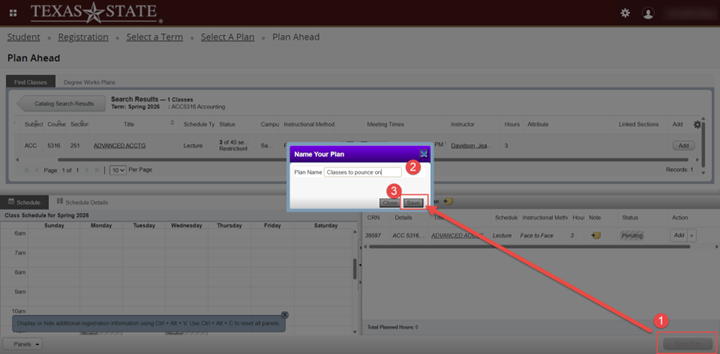
Click ‘Save Plan’ to name your plan and save it
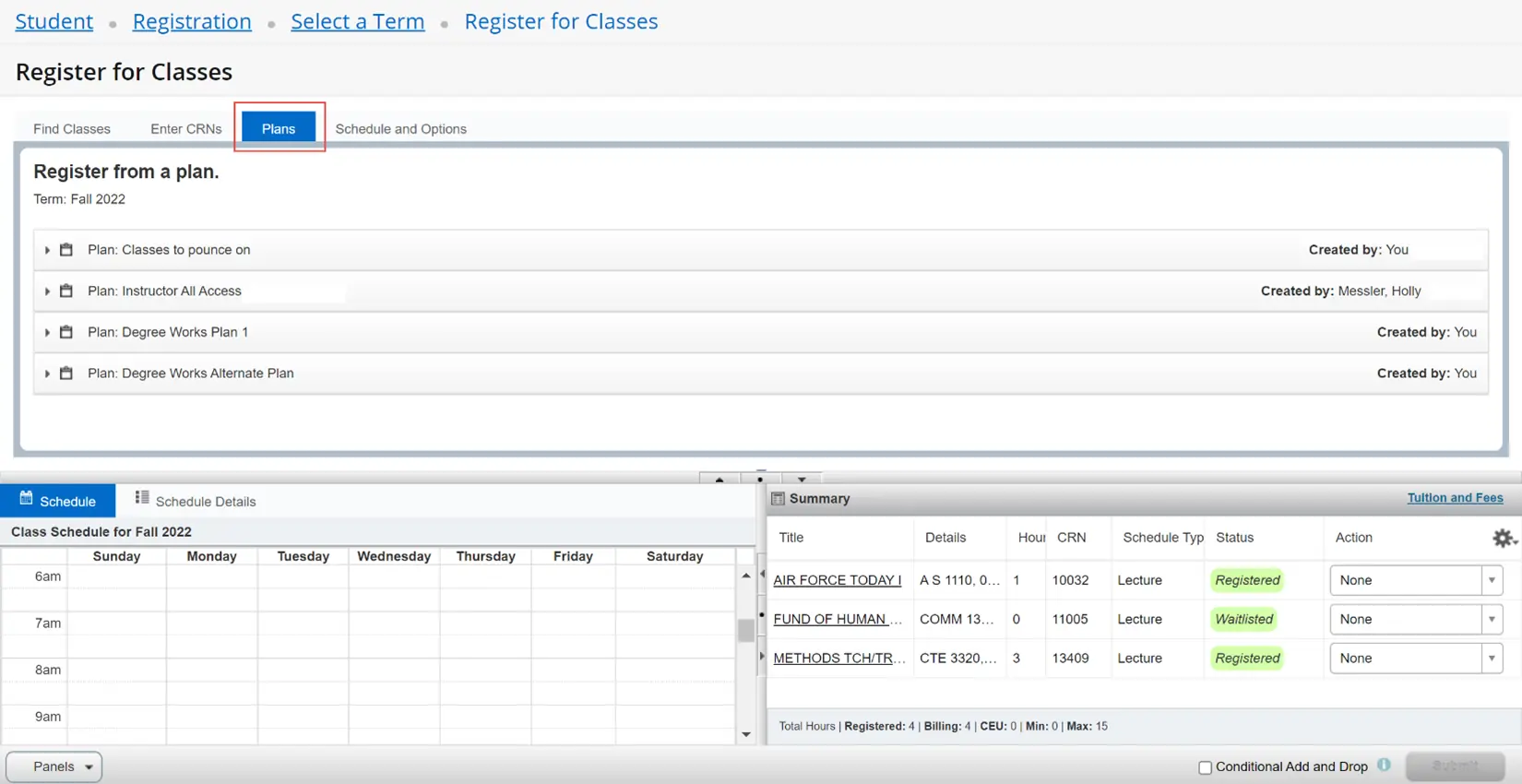
9) Using Plans for Registration
When it comes time for registration, click on the Plans tab to register from any created by your advisor, you, or that exist in Degree Works